
Install the Splunk Application
Path:
/application/installation
This page explains how to install the Splunk application, create the HEC input used by the collector, and validate that dashboards receive data.
Screenshot
Section titled “Screenshot”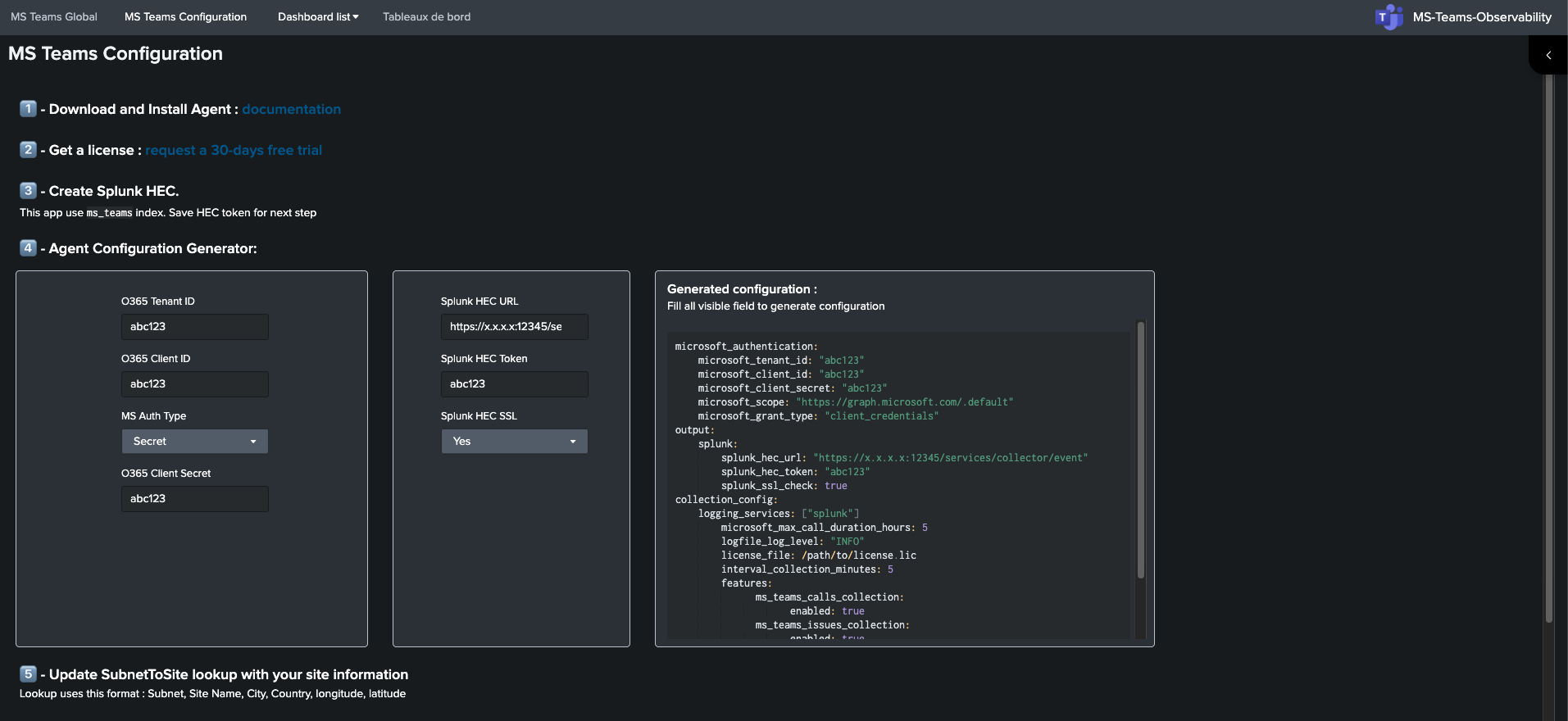
1. Install the Splunk App
Section titled “1. Install the Splunk App”Install the MS Teams Observability app on your Splunk Search Head (or Search Head Cluster).
- Splunkbase: splunkbase.splunk.com/app/7850
2. Create the HEC Input
Section titled “2. Create the HEC Input”Create an HTTP Event Collector input dedicated to MS Teams telemetry.
- Open Settings -> Data Inputs -> HTTP Event Collector.
- Create a new token.
- Set default index to
ms_teams(create the index first if needed). - Save and copy both token and endpoint URL.
You will use this token/URL in collector output configuration: Collector Connection.
3. Validate Ingestion
Section titled “3. Validate Ingestion”After first collector cycle, validate that data is visible in Splunk.
- Run a search:
index=ms_teams | head 10. - Confirm events exist with expected sources (
MSTeams_CallRecords_CallMetadata, etc.). - Open Splunk dashboards and verify charts/tables are populated.
4. Optional Site Mapping
Section titled “4. Optional Site Mapping”For site-level dashboards, import and maintain the subnet-to-site lookup table (for example SubnetToSite).
This corresponds to optional sites.csv in collector configuration: sites.csv option.