
Application — Status
Tab label: Status — Path:
/configuration— No time picker (this is a status page, not a data page)
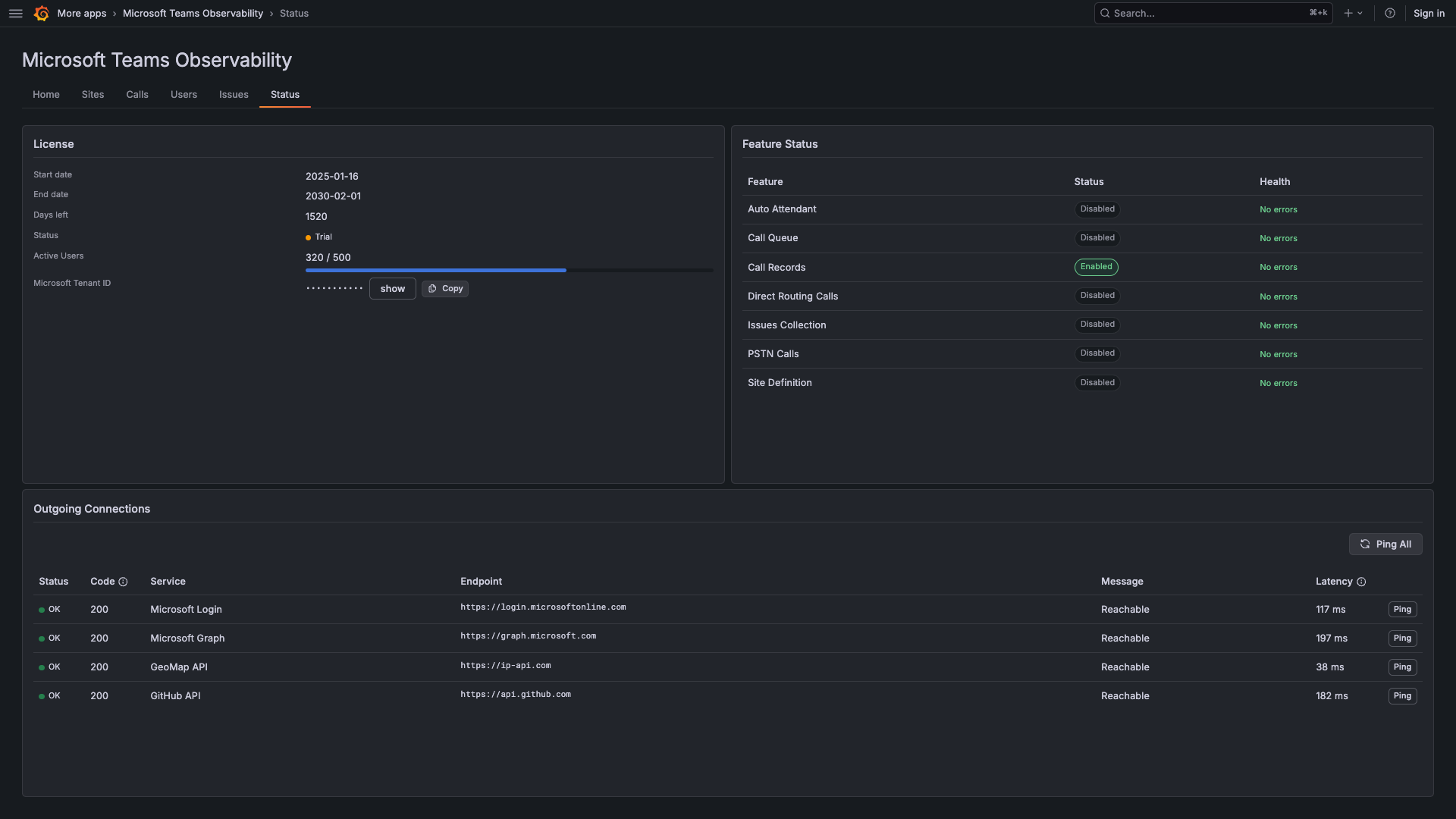
The Status tab is the operational hub for license monitoring, feature health, and connectivity testing. Use it to verify the app is correctly configured and all dependencies are reachable.
Layout
Section titled “Layout”The page has two rows:
| Row | Section |
|---|---|
| Row 1 (50/50) | License Panel (left) + Feature Status Panel (right) |
| Row 2 (full width) | Outgoing Connections Panel |
License Panel
Section titled “License Panel”Displays your current license status and details:
| Detail | Description | What to look for |
|---|---|---|
| License Status | Active (green), Expired (red), or Missing (grey) | Should be Active for live mode |
| Tenant ID | Masked by default — click to reveal | Verify it matches your Microsoft 365 tenant ID |
| Expiration | License expiry date | Renew before expiry to avoid service interruption |
| Features | List of enabled collectors | Should match the collectors you configured |
Troubleshooting
Section titled “Troubleshooting”| Symptom | Likely cause | Solution |
|---|---|---|
| License shows “Missing” | License file not found or not configured | Upload the license in Provisioning |
| License shows “Expired” | License validity period has passed | Contact Phenisys for renewal |
| Tenant ID doesn’t match | Wrong license file | Obtain the correct license for your tenant |
Feature Status Panel
Section titled “Feature Status Panel”An interactive table showing the operational status of each collector:
| Column | Description | Color coding |
|---|---|---|
| Feature | Collector name (e.g., Calls, PSTN) | — |
| Status | Active (green), Disabled (grey), or Error (red) | Green = collecting normally. Grey = not configured. Red = error condition. |
| Details | Error message or last collection timestamp | Shows the most recent information from the collector |
Troubleshooting
Section titled “Troubleshooting”| Symptom | Likely cause | Solution |
|---|---|---|
| All features show “Disabled” | Collector not running | Verify the collector service is started |
| One feature shows “Error” | Feature-specific failure (e.g., Graph API throttling) | Check the collector logs for details |
| No features listed | No health data received | Check that the collector can reach the Loki datasource |
Outgoing Connections Panel
Section titled “Outgoing Connections Panel”Tests connectivity to external endpoints the app depends on. Each endpoint has an individual Ping button, and a Ping All button tests all simultaneously.
| Endpoint | URL | Purpose | Expected code |
|---|---|---|---|
| Microsoft Login | login.microsoftonline.com | OAuth2 token acquisition for Microsoft Graph | 200 or 401 (connected) |
| Microsoft Graph | graph.microsoft.com | Microsoft Teams call records API | 401 (connected, no bearer token — normal) |
| GeoMap API | ip-api.com | IP geolocation for the Call Map | 200 |
| GitHub API | api.github.com | Release version check | 200 |
Columns:
| Column | Description |
|---|---|
| Service | Name of the service. Hover for description. |
| Endpoint | The URL being tested |
| Status | Green (reachable), Red (unreachable), Grey (not yet tested) |
| Code | HTTP response code chip (e.g., 200, 401, 500) |
| Latency | Round-trip time in ms |
Note: A
401status is normal for authenticated services (Microsoft Login, Graph API). The test verifies reachability, not credential validity.
Troubleshooting
Section titled “Troubleshooting”| Symptom | Likely cause | Solution |
|---|---|---|
login.microsoftonline.com unreachable | Firewall blocking Microsoft login | Add login.microsoftonline.com to the allowlist |
graph.microsoft.com unreachable | Microsoft Graph blocked | Verify network rules allow graph.microsoft.com |
ip-api.com unreachable | GeoIP endpoint blocked | Add ip-api.com to the allowlist if GeoIP is needed |
| All endpoints red | General network issue | Check DNS resolution, proxy, and internet connectivity |